The story
The five minute backup setup that saved our Monday
An ordinary update turned my client's charity website into a blank white page. Because of one boring habit, it was fixed before the first cup of tea went cold.
By Elena Novak, WordPress & Managed Editor · 5 min read
·
Disclosure: Some links on this page are affiliate links — if you sign up through one, we may earn a commission at no extra cost to you. It never changes our ratings, rankings or verdicts: we don't sell hosting and take no pay-for-placement.
One of my nonprofit clients is a small community charity. They run a food share program, a few volunteer groups, and a website that people use to find opening hours and sign up to help. I built the site on WordPress, and the coordinator, Frances, looks after it day to day. She isn’t technical. She’s the person who got the job because she was the one who “didn’t mind.”
Most stories in this series are about things going wrong. This is one about things going wrong and then, for once, going right.
Sunday evening
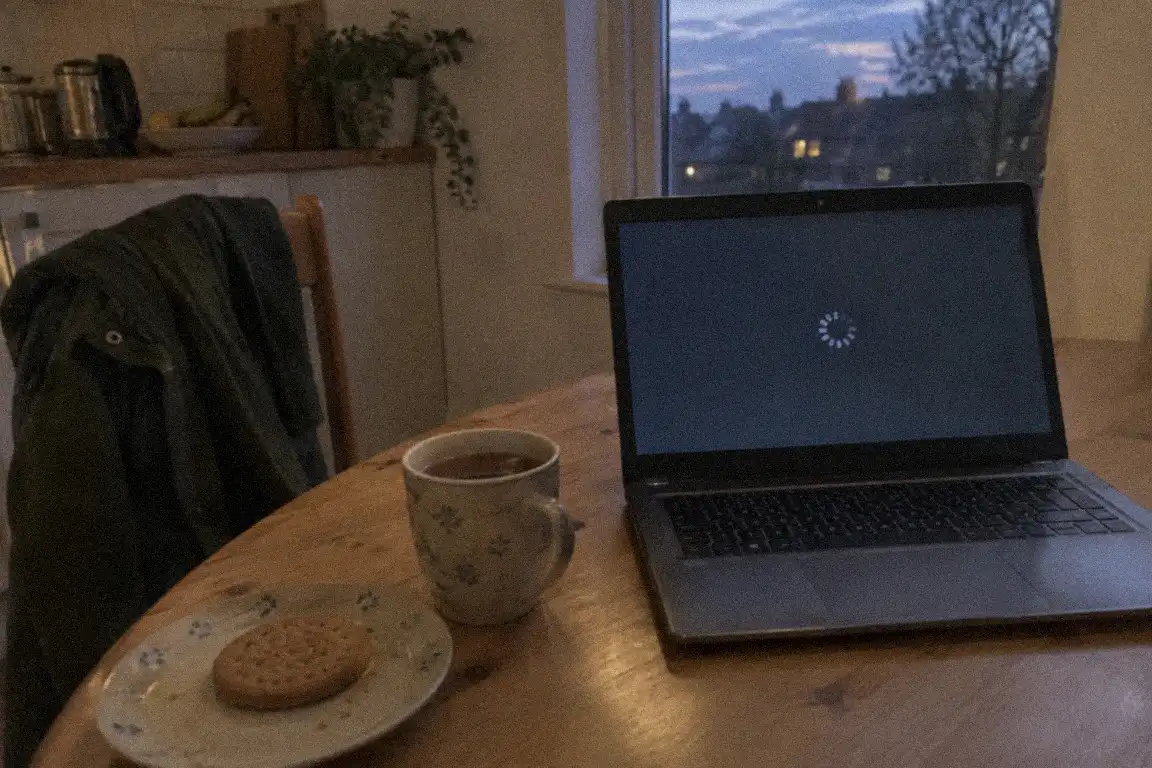
On Sunday night, Frances did a bit of housekeeping. The website had a few updates waiting: a couple of plugins and a theme. She clicked “update all,” watched the little spinning circles finish, and went to bed.
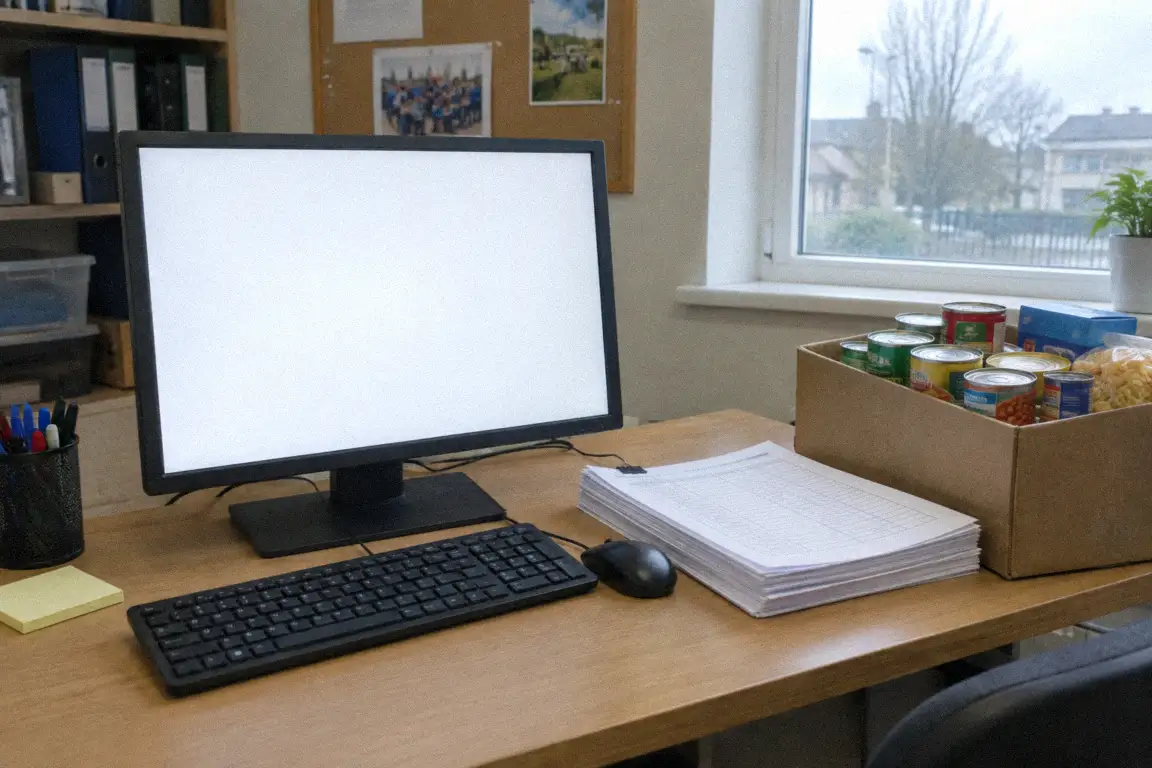
On Monday morning she got to the office early to prepare for the volunteer briefing, and opened the site to pull up the roster.
White screen. Not a message, not a logo. Just a blank page.
The moment of calm
My phone rang at 7:42. I could hear her heart in her voice. Forty volunteers were about to check that page for their shifts.
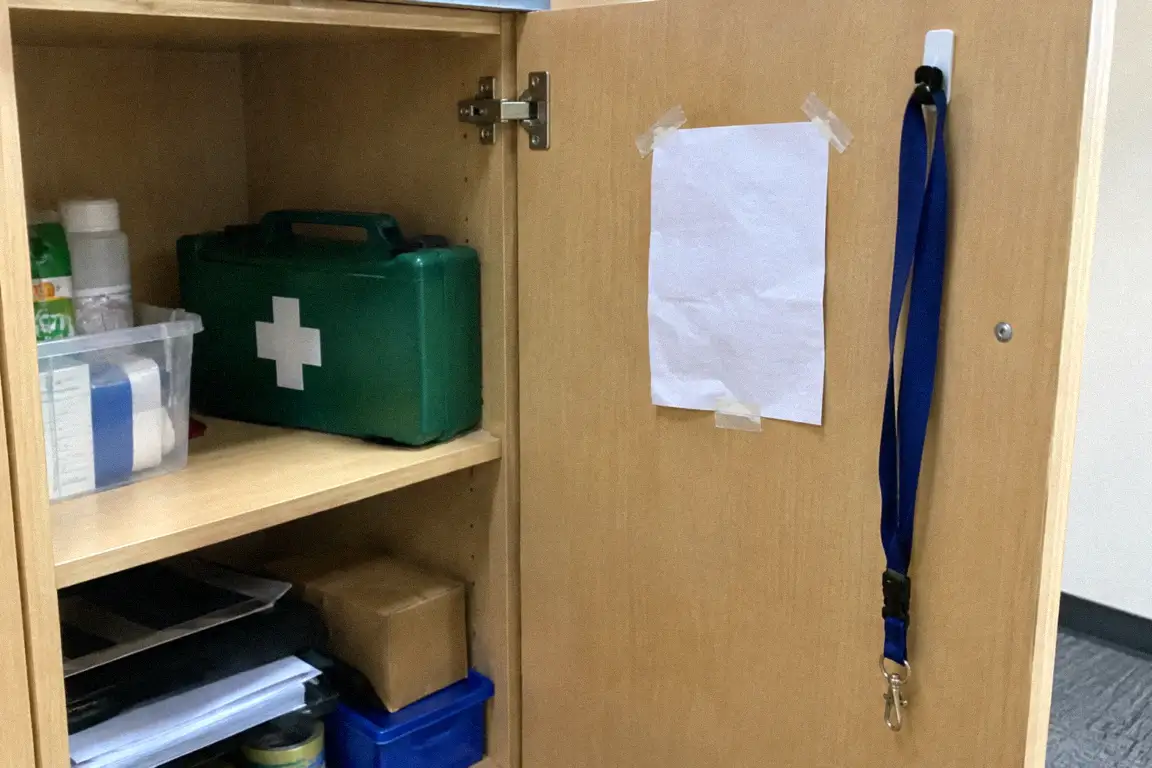
Here is where I get to feel a little pleased with my past self. I’ve seen a blank white screen after an update more times than I can count, and when I handed the site over months earlier, I’d done two boring things. I set up a backup plugin that takes a full copy of the site every night and sends it to a cloud storage folder, not to the web server. And I wrote three lines on a sheet of paper and taped it inside the office cupboard: “If the site breaks: 1. Log in to hosting. 2. Open the backup tool. 3. Restore last night’s copy.”
I remember thinking at the time that she’d never look at it. I said so, and Frances laughed and taped it up anyway.
“Frances,” I said, “open the cupboard.”
The fix
She read the note out loud to me like it was a message from a wise stranger, and we walked through it together on the phone. It took about eight minutes. She logged in and found the latest backup, which was dated Monday at 3:00 a.m. That was after the update had broken things, so I had her choose Sunday night’s copy instead, and she clicked restore. The site came back exactly as it was before the update, roster and all.
That choice matters, and it’s the one beginners miss. The newest backup isn’t always the right one. You want the last copy from before things went wrong.

Afterwards I looked into it and found that one of the updated plugins didn’t get along with the theme I’d built. We left that plugin out until I could test a newer version on a staging copy. The volunteers never even knew anything had happened.
The whole thing cost eight minutes and no lost data. Without the backup, I honestly don’t know what we’d have done. Probably several days of frantic calls, me rebuilding pages from screenshots, and a very awkward briefing.
What it taught me
It’s easy to imagine that protecting a website needs an expert and a big budget. It doesn’t, at least not at the start. I learned this the hard way early in my career, on a client site with no backup at all, and I’ve never built one since without it.
What this little charity had was small and boring. An automatic nightly backup, kept away from the server, and a note on paper telling a stressed person what to do.
That’s the whole secret. Not a fancy system. A dull, reliable one. And the note matters as much as the backup, because on the worst morning nobody remembers anything. They need to be able to read it.
I should say that Frances isn’t careless. She’s careful, kind and run off her feet, like most people who work for a charity. The whole point of my job is to make the safe option the easy one, so that a busy person on a Sunday night can click one button and not take the whole organisation down with it.
A few things I’d tell you
- Set up automatic backups today. It’s about five minutes, and you only do it once.
- Keep them off your server. Cloud storage or another location, so one failure can’t take both.
- Write down the restore steps. Put them somewhere you’ll find when you’re rattled.
- Back up before updating. If you can, take a fresh copy right before you click “update all.”
- Pick the right backup. If the break happened after a certain time, restore one from before it.
The charity’s website is dull and dependable now, which is exactly the way a website should be. And every Monday, Frances thanks me with a coffee and a biscuit, which I accept with great dignity.
To sum it up
- Small, routine backups beat clever plans you never got around to.
- Keep a recent backup somewhere off your server, ideally automatic.
- Know how to restore before you need to, and write the steps down.
- Five minutes of setup can buy you a calm Monday.