How to Back Up a Website

WordPress & Managed Editor
Disclosure: Some links on this page are affiliate links — if you sign up through one, we may earn a commission at no extra cost to you. It never changes our ratings, rankings or verdicts: we don't sell hosting and take no pay-for-placement.
Who it's for
- Small business owners
- WordPress site owners
- Agencies managing client sites
What Backing Up a Website Involves
Backing up a website means saving a complete, restorable copy of both its files (theme, plugins, media, code) and its database (posts, pages, settings, users) to a location separate from the live server. See hosting backups for how backup frequency and retention typically work across hosting tiers. A backup that only covers files, or only the database, is incomplete. Restoring from it won’t bring the site back to a working state.
Prerequisites Before Backing Up
- A live site to back up, obviously, but also a clear sense of what “complete” means for that specific platform (WordPress needs both
wp-contentand the database; a static site may just need its files). - Somewhere to store the backup that isn’t the same server — off-site cloud storage, a downloaded local copy, or a separate backup service.
- Panel or plugin access for whichever backup method is being used.
How to Backup a Website: Step-by-Step
Check for a Built-In Backup Tool in cPanel
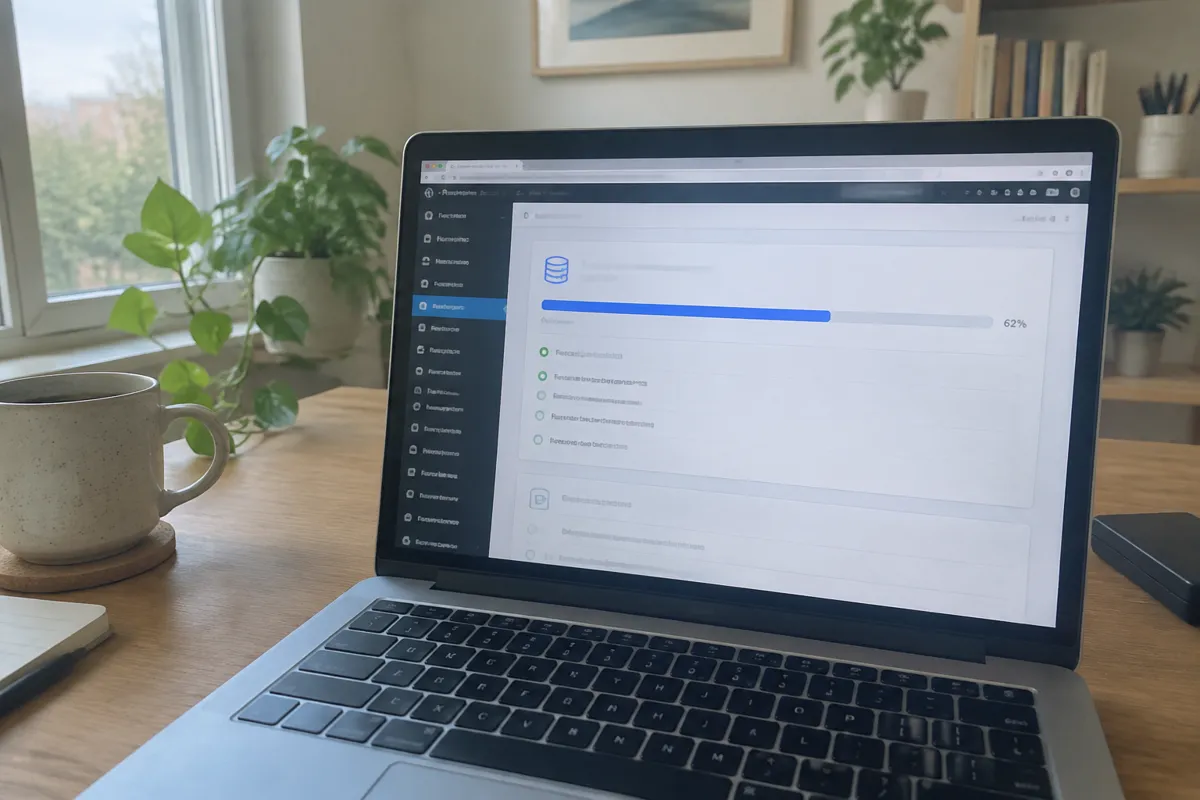
- Check the hosting panel for a built-in backup tool. Many hosts, especially managed hosting plans, run automatic daily or weekly backups already; confirm what’s included before assuming nothing exists.
- Generate a manual backup if none is scheduled, usually available in cPanel under a “Backup” or “Backup Wizard” section, covering both files and the database.
- For WordPress specifically, consider a backup plugin (such as UpdraftPlus or similar) for scheduled backups pushed automatically to off-site storage, independent of the host’s own tool.
Store the Backup Off-Site and Set a Recurring Schedule
- Download or export the backup to a location outside the hosting account — cloud storage, a local drive, or a dedicated backup service.
- Set a recurring schedule rather than relying on one-off manual backups — daily for active sites, weekly at minimum for low-change sites.
- Label backups clearly with dates, so the correct restore point can be identified quickly if something breaks.
Verifying a Backup Actually Works
A backup that’s never been tested isn’t a reliable backup. Periodically restore a backup to a staging site, never directly to production for a test, and confirm the site loads correctly from the restored files and database. Check that the restored version includes recent content, not an unexpectedly old snapshot, and that both files and database restored together rather than one silently failing.

Common Errors When Backing Up a Website
- Backup only includes files, not the database — the most common incomplete-backup mistake; a WordPress site restored from files alone will be missing all its actual content.
- Backup stored on the same server it protects — if the server fails entirely or is compromised, an on-server-only backup is lost along with the site.
- Backup schedule silently stops running — plugin or panel backup jobs can fail without an obvious alert; check backup logs periodically rather than assuming they’re still running.
- Restore fails due to a database version mismatch — restoring an old backup onto a server running a newer database version can cause errors; check compatibility before a real emergency restore.
Backups vs Migration
Backups and website migration both involve moving a full copy of files and a database, but for different purposes. A backup sits idle as insurance until something breaks, while a migration moves that copy to a new, active destination immediately. The mechanics overlap enough that a recent backup is often the fastest starting point for a migration, and a migration checklist covers many of the same verification steps as a backup restore test.

Backups as Part of a Wider Security Posture
A backup is also one of the core defences covered under web hosting security: if malware infects a site or an update goes badly wrong, a clean, recent backup is often the fastest way back to a working state. It’s typically faster than manually rebuilding or scrubbing infected files line by line.
FAQ
How often should a website be backed up? Daily for any actively updated site — a blog, a store, or a site with regular content changes. Weekly is usually sufficient for a mostly static, rarely edited site.
Where should backups be stored? Somewhere separate from the hosting account itself — cloud storage (Dropbox, Google Drive, S3), a dedicated backup service, or a downloaded local copy — so a server-level failure doesn’t take the backup down with it.
Does my host already back up my site automatically? Many do, particularly on managed hosting plans, but retention periods and what’s actually covered vary. Check the plan’s specific backup policy rather than assuming full coverage.
What’s the fastest way to restore from a backup? Through the same tool the backup was created with — the hosting panel’s backup restore option, or the backup plugin’s restore function — rather than manually re-uploading files and re-importing a database by hand.