How to Upload a Website via FTP/SFTP

WordPress & Managed Editor
Disclosure: Some links on this page are affiliate links — if you sign up through one, we may earn a commission at no extra cost to you. It never changes our ratings, rankings or verdicts: we don't sell hosting and take no pay-for-placement.
Who it's for
- Developers uploading a hand-built site
- Freelancers launching a client site
- Anyone without access to a one-click installer
What Uploading a Website via FTP/SFTP Involves
FTP (File Transfer Protocol) and its encrypted counterpart SFTP (SSH File Transfer Protocol) move files from your computer into your hosting account’s file system. It’s the standard way to get a static site, a custom-coded site, or anything outside a CMS installer onto a server. Nearly every host that offers cPanel exposes FTP credentials by default.
Two names cause confusion, so it’s worth being precise. Plain FTP sends your password and files unencrypted. SFTP runs over SSH and encrypts everything. A third variant, FTPS, is FTP wrapped in TLS, and some hosts offer that instead of SFTP. They’re three different protocols that happen to sound alike, and your client needs to be told which one to use. If the host offers SFTP, choose it. If it offers only FTP or FTPS, that’s still workable, but prefer FTPS (explicit TLS) over plain FTP.
Prerequisites Before Uploading
- An active hosting account that has already been set up, with FTP or SFTP enabled.
- Credentials: hostname, username, password, and port. You’ll usually find them in the hosting panel under FTP Accounts, or in the welcome email.
- An FTP client such as FileZilla, Cyberduck, or the built-in client in a code editor.
- The site’s files ready locally, in the exact folder structure they need to have on the server, with an
index.html(orindex.php) at the top level.
A practical note on which login to use. The main cPanel username and password usually works for FTP, but it’s better to create a separate FTP account limited to the folder you need. If those credentials ever leak, or a contractor finishes the job, you can delete that one account without changing the password to your whole hosting account.
How to Upload Website FTP: Step by Step
Find Your FTP/SFTP Credentials and Connect
- Find the credentials in the hosting panel. Most hosts list a hostname (often
ftp.example.com, or the server’s name or IP address), a username, and a way to set the password. If your domain doesn’t point at the host yet, use the server’s hostname or IP instead of your domain, because your domain will still resolve to the old location. - Open your FTP client and enter the hostname, username, password, and port. The defaults are 21 for FTP and FTPS and 22 for SFTP, though some hosts run SFTP on a custom port, so trust the number in your welcome email over the default.
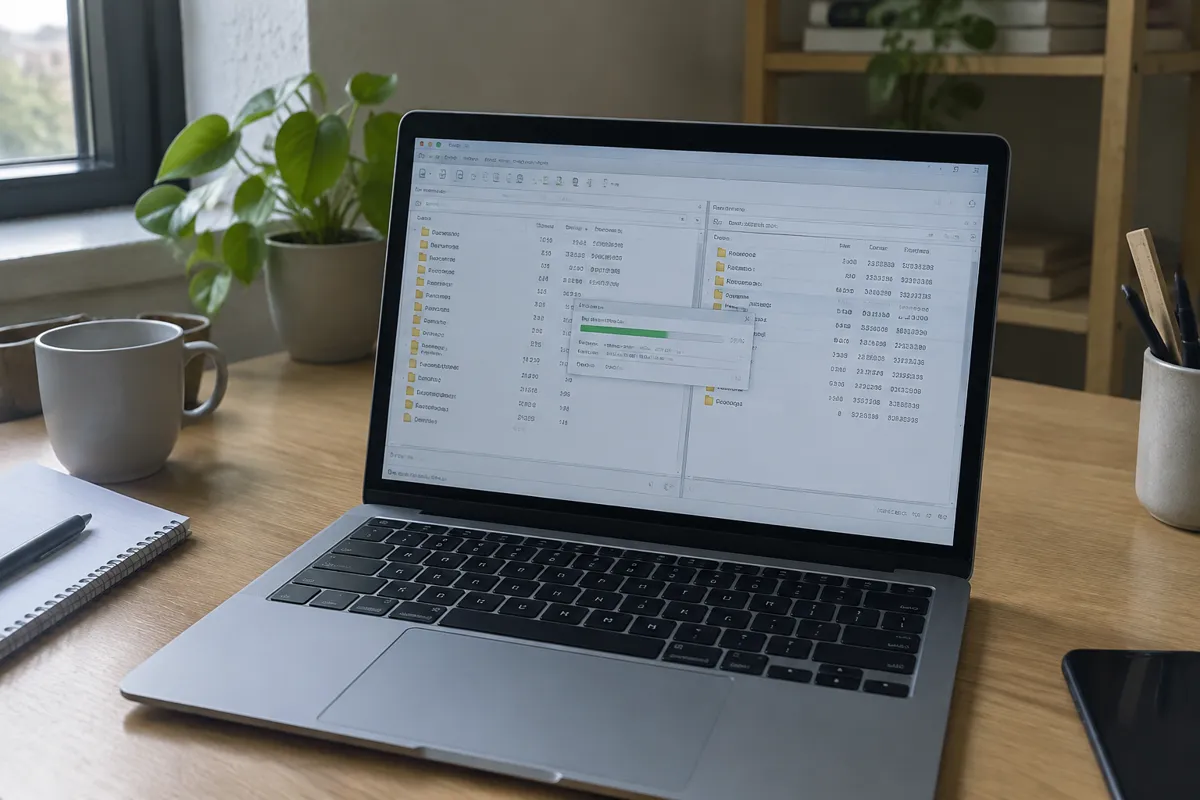
- Connect. You may be asked to accept a server certificate or host key the first time. That’s normal, and accepting is fine when you’re connecting to your own host for the first time. A successful connection shows two panes, with your local files on one side and the server’s on the other.
Upload Files to public_html and Set File Permissions
- Navigate to the correct server directory, typically
public_html,www, orhtdocs. This is what the domain root actually serves. If you added a second domain to the account, it may have its own folder, so check which one your domain points at in the panel. - Drag your site’s files into that directory. Upload the contents of your site folder, not the folder itself. Uploading a folder named
mysitetopublic_htmlmakes your site appear atexample.com/mysite/, which is one of the most common beginner surprises. - Wait for the transfer to finish and read the client’s log for failed files. Clients show failures in a separate tab, and it’s easy to miss one. A run that finishes with “0 failed” is what you want.
- Check file permissions. Most clients and hosts set them sensibly, but if you see permission errors, the usual values are 644 for files and 755 for directories.
Settings That Fix Most Connection Problems
FTP has a quirk that SFTP doesn’t: it uses two connections. The first carries your login and commands, and the second carries the actual file listings and transfers. In the default “active” mode, the server tries to connect back to you, which firewalls and home routers often block. The symptom is a connection that logs in happily, then hangs or times out when it tries to list the folder.
The fix is passive mode, which has your client open both connections outward. Most clients default to passive, but if yours doesn’t, turn it on in the connection settings. If you can connect but not list files, this is almost always the cause.
Other settings worth knowing about:
- Encryption. Set it to “Require explicit FTP over TLS” for FTPS, or choose SFTP as the protocol.
- Transfer type. Leave it on automatic. Forcing ASCII mode on images or zip files corrupts them.
- Simultaneous connections. Shared hosts often limit how many connections you can open. If uploads fail in clusters, drop the client’s maximum to two or three.
- Hidden files. Files starting with a dot, such as
.htaccess, are hidden by default in many clients. Turn on “show hidden files” so you don’t miss them or forget to upload them.
Verifying the Upload
Load your live domain in a browser and confirm the homepage renders rather than a blank page, a directory listing, or the host’s placeholder. Use a private window or press a hard refresh, because your browser may be showing a cached version of the old page.
Next, open the browser’s developer console and look for 404 errors on images, CSS, and JavaScript. A cluster of 404s usually means a subfolder sits at the wrong level. Finally, click through a few internal links to confirm the whole structure transferred, and check that the padlock shows. If it doesn’t, see how to install an SSL certificate.

Common Errors When Uploading via FTP
- Site loads as a blank page or file listing. The files were uploaded one folder level too deep or too shallow relative to
public_html, or there’s noindexfile at the top. - Connection refused or times out. Usually a wrong port, an IP block from the host’s firewall after several failed logins, or FTP disabled in favor of SFTP only. Wait a few minutes before retrying if you’ve just mistyped a password several times.
- Login works but listing the folder hangs. Switch to passive mode, as described above.
- Images and styling missing after upload. Paths in the code don’t match the folder structure on the server. Also check for upper and lower case: most servers are case sensitive, so
Logo.pngandlogo.pngare different files, even though both work on a Windows or Mac laptop. - “550 Permission denied” on upload. You may be trying to write outside your allowed folder, or permissions are too restrictive. Adjust via the client’s permissions dialog or cPanel’s File Manager.
- Upload succeeds but the domain still shows the host’s default page. DNS for the domain hasn’t finished pointing at the hosting account, or a default
index.htmlplaceholder is still inpublic_htmland is taking priority over your file. Delete or rename the placeholder. - A half-uploaded file breaks the site. If the connection drops mid-transfer, a partly written file can sit on the server. Re-upload anything the log flags, and upload large archives when you’re on a stable connection.
FTP vs the Hosting Panel’s File Manager
Most hosts also offer a browser-based File Manager inside cPanel. It’s useful for quick single-file edits, and it can upload a zip file and extract it on the server, which is a genuinely good trick: zipping a site locally, uploading one file, and extracting it is often far faster than sending thousands of small files one by one. Keep the zip’s contents at the top level, and delete the zip afterwards.
For anything beyond a handful of files, a dedicated client with drag-and-drop and resume support is the more dependable choice. This is particularly true on shared hosting, where a dropped connection mid-upload is common on larger transfers. Managed and WordPress-focused hosts sometimes make FTP harder to find, or steer you toward Git deployment or their own file tools. That’s not a defect so much as a different design, but check the feature list before you buy if FTP matters to your workflow.
FAQ
Is FTP or SFTP better for uploading a website? SFTP, whenever the host supports it. It runs over an encrypted SSH connection, so credentials and file contents aren’t exposed in transit the way they are with plain FTP.
Where exactly do the files need to go?
Almost always into public_html (or occasionally www or htdocs, depending on the host), so the domain root serves the site directly, rather than requiring a subfolder in the URL.
Can I use FTP to upload a WordPress site? Yes, though a one-click installer is usually faster for a fresh WordPress site. See how to install WordPress. FTP is mainly used for themes, plugins, or media uploaded outside the WordPress admin, and for recovering a site when a bad plugin locks you out of the dashboard.
What if my hosting account doesn’t show FTP details anywhere? Some entry-level or app-only plans restrict FTP access. Check the plan’s feature list, since this is more common on some shared hosting tiers than on standard business plans. Support can usually confirm in one message.
Should I save my password in the FTP client? It’s convenient, but anyone with access to your computer can read it. Saving it on a personal laptop with a screen lock is a reasonable trade-off. On a shared or work machine, don’t.