Secure File Permissions Guide

Infrastructure Editor
Disclosure: Some links on this page are affiliate links — if you sign up through one, we may earn a commission at no extra cost to you. It never changes our ratings, rankings or verdicts: we don't sell hosting and take no pay-for-placement.
Who it's for
- Small business website owners
- Developers
- WordPress site admins
- Agencies managing client hosting
By Marcus Feld, Infrastructure Editor
File Permissions Website Basics: What They Control
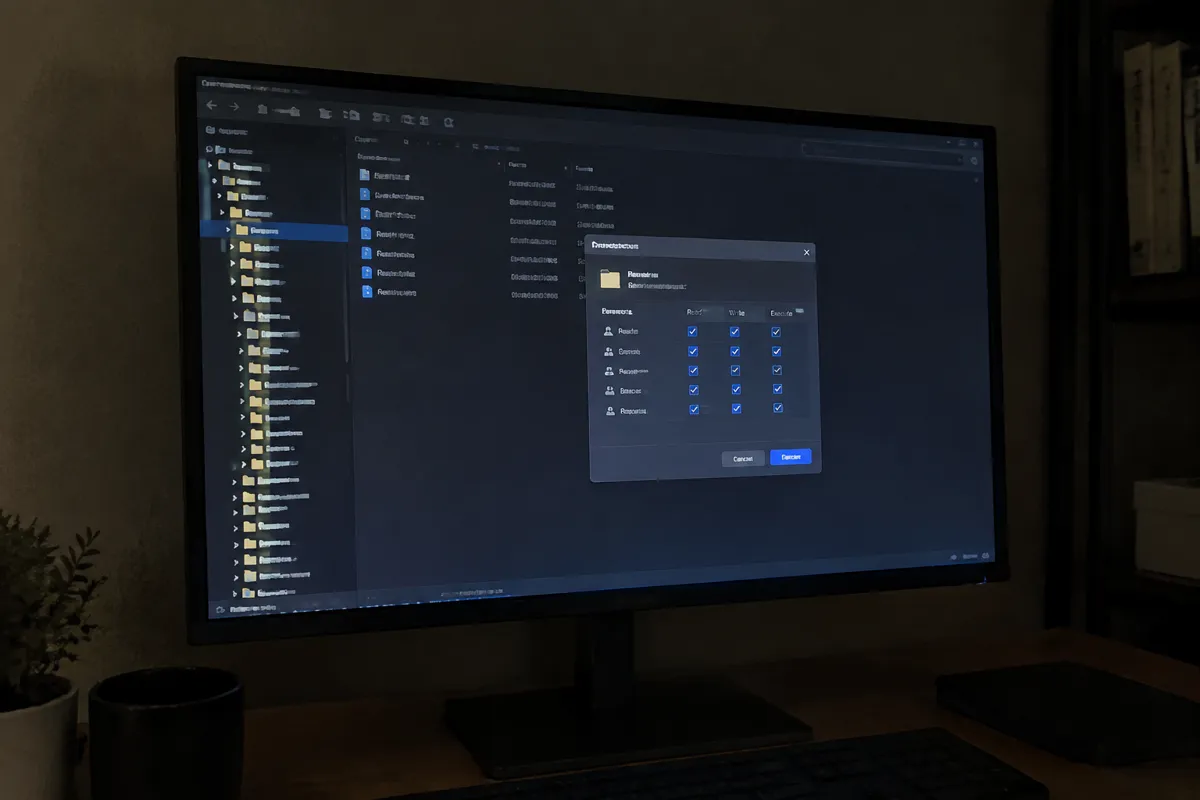
File permissions determine who — and what process — can read, write to, or execute each file and directory on a hosting server. On Linux-based hosting, the majority of shared, VPS, and managed hosting, permissions are expressed as a three-digit number. There’s one digit each for the file owner, the group, and everyone else, and each digit is a sum of read (4), write (2), and execute (1). Getting these values wrong in either direction causes problems. Too restrictive, and your CMS can’t function: it can’t upload media or auto-update. Too permissive, and any process — including a malicious one — can modify files it shouldn’t touch.
The Standard Baseline
Files: 644
The owner can read and write; group and everyone else can only read. This is correct for the vast majority of website files: PHP scripts, images, CSS, JavaScript.
Directories: 755
The owner can read, write, and execute (enter the directory); group and everyone else can read and execute but not write. Execute permission on a directory means “can be entered or listed,” not “can run as a program.”
Sensitive Configuration Files
Files like wp-config.php (WordPress) that contain database credentials are commonly set to 600 or 640, restricting read access to the owner (and sometimes group) only.
Never 777
Full read/write/execute for everyone is never a legitimate permanent fix. If setting 777 “solves” an upload or permission error, the actual fix is correcting file ownership, not opening permissions to the world.
Why Incorrect Permissions Are a Security Risk
If a file is writable by more than it should be, any process that gains even limited access to the server can modify it — including a compromised plugin or a malicious script uploaded through an unrelated vulnerability. This is how a single outdated plugin vulnerability escalates from “one plugin’s code is exploitable” to “the attacker can now rewrite core files, inject a backdoor, or read database credentials directly.” Correct permissions don’t prevent every attack, but they contain the blast radius of one.
How to Check and Set File Permissions
- Via cPanel File Manager — right-click a file or folder, select “Change Permissions” (or “Permissions”), and enter the numeric value directly.
- Via an FTP/SFTP client — most clients (FileZilla and similar) show permissions in the file list and let you right-click to set “File attributes” using the same numeric values.
- Via SSH — use
chmod 644 filenamefor a single file, orchmod -R 755 directorynameto apply recursively to a directory tree. See what is SSH for access basics if you’re new to command-line administration. - Bulk-correct after a migration — some migration and backup-restore tools reset permissions incorrectly. Check and correct this as a standard post-migration step, alongside DNS verification, when following how to migrate a website.
When to Re-Check Permissions
- After any site migration or backup restore
- After a bulk file upload via FTP (some FTP clients apply the client machine’s default permissions rather than the server’s)
- After installing a new plugin or theme, particularly ones that create their own upload directories
- As part of the standard post-incident hardening step after removing malware from a compromised site
- Periodically, as a routine item in your how to secure a website checklist
Hardening Checklist
- Files set to 644, directories set to 755 as the baseline
- Sensitive config files (database credentials) tightened to 600 or 640
- No file or directory anywhere set to 777
- Permissions re-checked after every migration or bulk upload
- File ownership correct (not just permissions) — a file owned by the wrong system user causes the same class of problem
- Uploads/media directories checked to ensure they don’t allow script execution
Provider Responsibility vs Yours
Hosts set sensible default permissions when an account is provisioned and generally enforce server-level restrictions preventing one tenant’s account from reading another’s files on shared hosting. But permissions within your own account — what your CMS, plugins, and uploads directories are set to — are yours to manage and check, particularly after migrations, restores, or manual file uploads where defaults can drift.

FAQ
Why does setting 777 sometimes “fix” an upload error? Because the real problem is usually a file or directory owned by the wrong system user, and 777 works around that by making the file writable by everyone — including anything malicious. The correct fix is changing ownership to match the web server’s user, not opening permissions.
Do file permission values differ between WordPress and other CMS platforms?
No — the 644/755 baseline is a Linux filesystem standard, not CMS-specific. What differs between platforms is which specific files need extra tightening (like WordPress’s wp-config.php or an equivalent config file on other platforms).
Can incorrect permissions cause a site to break rather than a security issue? Yes — too-restrictive permissions are a common cause of failed plugin updates, broken media uploads, or a site unable to write its own cache files, which is why the goal is the correct baseline, not just “more restrictive is always safer.”
Do I need SSH access to check file permissions? No — cPanel’s File Manager and most FTP/SFTP clients display and let you change permissions through a graphical interface; SSH is faster for bulk changes but not required.