How to Remove Website Malware

Infrastructure Editor
Disclosure: Some links on this page are affiliate links — if you sign up through one, we may earn a commission at no extra cost to you. It never changes our ratings, rankings or verdicts: we don't sell hosting and take no pay-for-placement.
Who it's for
- Small business website owners
- WordPress site admins
- Developers
- Agencies handling client incident response
By Marcus Feld, Infrastructure Editor
Signs You Need to Remove Website Malware
- Visitors report being redirected to unrelated or suspicious sites
- Search results show spammy or unrelated content (“pharma hack” style listings) that doesn’t appear when you view the page directly
- Browsers or Google Search Console flag the site with a security warning
- Unfamiliar admin users, plugins, or scheduled tasks appear in the CMS
- New files with obfuscated code appear in the file manager, particularly in uploads or plugin directories
- Sudden spikes in outbound traffic or server resource usage with no matching legitimate cause
- Hosting provider notifies you of a suspension or abuse complaint tied to your account
Threat Model: How Sites Get Infected
Malware almost never arrives through a sophisticated targeted attack on a small site. It exploits an existing weakness: an outdated plugin or theme with a known vulnerability, a weak or reused admin password, loose file permissions, or a compromised FTP/SFTP credential. Understanding the likely entry point before you clean matters, because removing the malicious files without closing the entry point leads directly to reinfection.
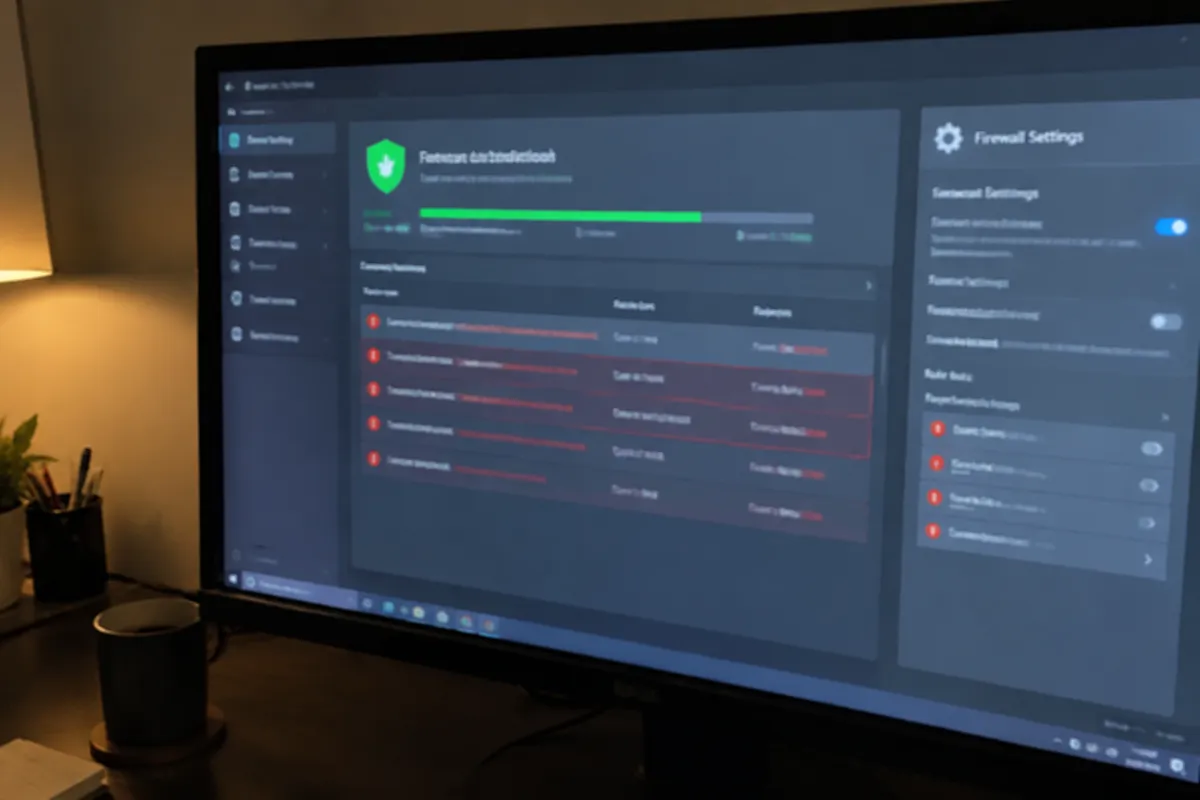
Step-by-Step Guide to Remove Website Malware
- Isolate the site. Put it in maintenance mode or take it offline temporarily. This stops the infection from spreading further or continuing to serve malicious content to visitors and search crawlers.
- Check the file-modification timeline. Most hosting control panels or FTP clients let you sort files by modified date. Recently changed files, especially outside your normal update pattern, point directly at the infection window.
- Review server and access logs. Look for unusual login attempts, unfamiliar IP addresses accessing admin areas, or requests to files that shouldn’t exist. This identifies the entry point, not just the symptom.
- Remove malicious code, not just obvious files. Malware frequently injects code into legitimate core files rather than only adding new ones. A partial cleanup that misses an injected line in a legitimate file leaves the door open. Compare suspect files against clean originals from the CMS or plugin vendor where possible.
- Check for backdoors. Search for unfamiliar admin users, unexpected scheduled tasks (cron jobs), and suspicious files in uploads directories that shouldn’t contain executable code.
- Restore from a known-clean backup if the infection is extensive or you can’t be confident every trace is removed. See how to back up a website for how a tested backup makes this the fastest path back to normal.
- Rotate every credential touching the site: hosting account, CMS admin, database, FTP/SFTP, and any API keys. A compromised credential is often how the attacker got back in even after a partial cleanup.
- Re-scan before going fully live again, using a malware scanner to confirm the site is clean, then bring it out of maintenance mode.
- Request a review from Google Search Console or your browser’s Safe Browsing report if the site was flagged, once you’ve confirmed it’s clean. This is what removes the warning visitors see.
Detection Going Forward
Set up ongoing malware and file-integrity scanning so a future infection is caught in hours, not discovered by a customer complaint weeks later. Combine automated scanning with a manual review after any suspicious traffic pattern, and treat any unfamiliar admin account as a signal to investigate immediately rather than dismiss.
Hardening Checklist: File Permissions, Credentials, and Backups (Post-Cleanup)
- Every credential touching the site rotated (hosting, CMS, database, FTP/SFTP, API keys)
- CMS, plugins, and themes updated to current versions
- File permissions reset to correct values — see the file permissions guide
- Unused plugins, themes, and admin accounts removed
- Malware scanning enabled on an ongoing schedule
- Fresh clean backup taken immediately after confirmed cleanup
- Web application firewall active to filter known attack patterns — see web application firewall
Provider Responsibility vs Yours
Most hosts will suspend an infected account to protect their network and other tenants, and some offer malware scanning or basic cleanup as a paid or bundled service — but responsibility for the application-layer cleanup (identifying the entry point, cleaning injected code, closing the vulnerability) is typically yours or your developer’s. Confirm what cleanup support, if any, is included before you need it; see the broader web hosting security guide for how this fits the shared-responsibility model.

FAQ
Can I just restore a backup instead of manually cleaning the site? Yes, if you have a backup confirmed clean and taken before the infection window — this is usually faster and more reliable than manual cleanup, provided you still close the entry point and rotate credentials afterward so the same weakness isn’t reinfected immediately.
Will Google automatically un-flag my site once it’s clean? Not automatically in most cases — you typically need to request a manual review through Google Search Console after confirming the site is malware-free, which can take anywhere from a day to a couple of weeks.
How do I know if the malware is fully removed? Run a full scan with an updated malware scanner, manually check the file-modification timeline for anything still suspicious, and monitor for a few days afterward — reinfection shortly after cleanup is the clearest sign the entry point wasn’t actually closed.
Should I involve my hosting provider in the cleanup? Yes — notify them as soon as you detect an infection. Many hosts can flag related accounts affected by the same vulnerability, provide log access you can’t otherwise see, and some offer cleanup assistance as part of managed or security-add-on plans.