How to Secure a Website

Infrastructure Editor
Disclosure: Some links on this page are affiliate links — if you sign up through one, we may earn a commission at no extra cost to you. It never changes our ratings, rankings or verdicts: we don't sell hosting and take no pay-for-placement.
Who it's for
- Small business website owners
- WordPress site admins
- Freelancers managing client sites
- Non-technical site managers
By Marcus Feld, Infrastructure Editor
How to Secure a Website: What It Actually Means
Securing a website means closing the specific entry points attackers use before any of them get exploited: weak or reused credentials, outdated software, loose file permissions, unfiltered malicious traffic, and unbacked-up data. It is not a plugin you install once; it’s an ordered set of controls plus the ongoing discipline of keeping them current. This guide on how to secure a website walks through that sequence in the order it matters most, from account-level basics through to the safety net a backup provides.
Step 1: Lock Down Every Account Touching the Site
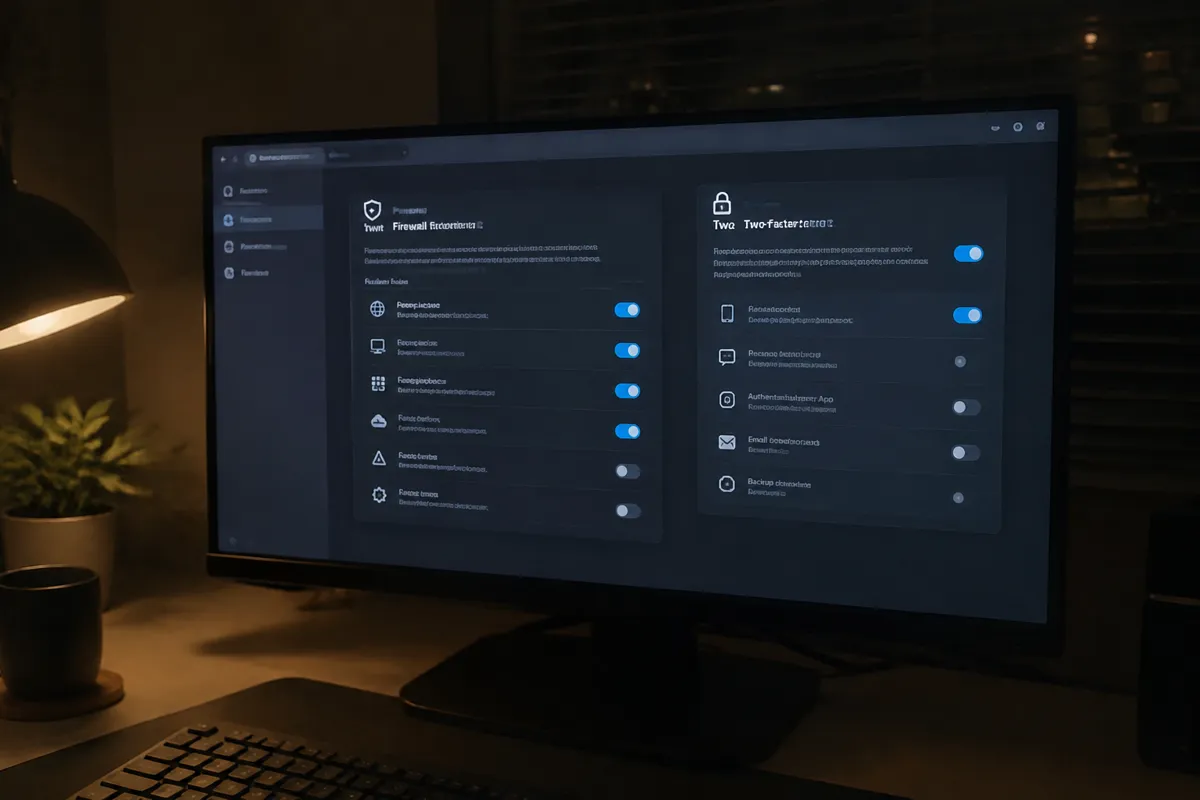
Start here because a stolen credential defeats almost every other control. Use unique, long passwords for your hosting account, CMS admin, database, and FTP/SFTP — never reused across services. Enable two-factor authentication everywhere it’s offered. Remove any admin accounts you no longer use, and limit the number of full-admin users to the minimum needed. See how to secure your hosting account for the account-specific hardening steps.
Step 2: Install and Force SSL/TLS
An SSL/TLS certificate encrypts data moving between your visitors and your server. It protects logins, form submissions, and payment data from interception. Beyond encryption, it’s now a baseline trust signal browsers flag prominently when it’s missing. See how to install an SSL certificate for the setup steps and SSL, TLS & HTTPS explained for what each term actually covers.
Step 3: Set Correct File Permissions
Loose file permissions are one of the most common ways a single compromised plugin escalates into full site control. The standard baseline is 644 for files and 755 for directories, with configuration files like wp-config.php tightened further. See the file permissions guide for the full breakdown by file type.
Step 4: Keep Everything Updated
Outdated CMS core files, plugins, and themes are the single largest source of exploited vulnerabilities on small business websites. Attackers scan for known, unpatched versions rather than hunting for new flaws. Update on a schedule, not only when you remember, and test major updates on a staging copy first via how to create a staging site.

Step 5: Add a Web Application Firewall
A web application firewall filters incoming requests against known attack patterns before they reach your site’s code — SQL injection attempts, malicious file uploads, and brute-force login floods. Many hosts bundle one, or you can add one at the CDN layer. See web application firewall for how it works and what it does and doesn’t catch.
Step 6: Confirm DDoS Protection
A traffic flood doesn’t need to breach your site to take it offline — it just needs to exhaust server resources. Confirm your host or CDN provides DDoS mitigation, particularly if you’re on shared or entry-level hosting where resource ceilings are lower. See DDoS protection in hosting for what to look for.

Step 7: Automate and Test Backups
Every prevention step can fail. A recent, verified backup is what turns a compromise into a restore-and-move-on rather than a rebuild-from-scratch. Automate backups at a frequency matching your content-change rate, and store copies off-server. Periodically test-restore one — an untested backup is an assumption, not a safety net. See how to back up a website.
Ongoing Maintenance: Security Isn’t a One-Time Task
- Review admin users and remove access no longer needed
- Re-scan for malware after any suspicious traffic or behavior
- Re-check file permissions after any migration or bulk file upload
- Rotate credentials periodically, and immediately after any team member with access leaves
- Revisit the web hosting security hardening checklist quarterly
FAQ
Do I need a security plugin if my host already offers protection? Host-level protection (network firewalls, DDoS mitigation) and application-level protection (malware scanning, login-attempt limiting) cover different layers — many sites run both, particularly on shared hosting where host-level coverage is more generic.
How long does it take to fully secure a website? The core steps — credentials, SSL, permissions, updates, a firewall, and a first backup — take under an hour on most CMS platforms. Ongoing maintenance is the part that has no end date.
Is a free SSL certificate as secure as a paid one? Yes, for encryption purposes. Free certificates (like Let’s Encrypt) use the same TLS protocol as paid ones; paid certificates add extended validation branding and warranty coverage, not stronger encryption.
What’s the single highest-impact step if I can only do one? Updating your CMS, plugins, and themes to current versions — outdated software is the most common exploited entry point by a wide margin, ahead of weak passwords or missing firewalls.