How to Create a Hosting Email Account

WordPress & Managed Editor
Disclosure: Some links on this page are affiliate links — if you sign up through one, we may earn a commission at no extra cost to you. It never changes our ratings, rankings or verdicts: we don't sell hosting and take no pay-for-placement.
Who it's for
- Small business owners
- Freelancers setting up a professional inbox
- Anyone launching a new domain
What Creating a Hosting Email Account Involves
Creating a hosting email account sets up an inbox on your own domain, such as hello@example.com, rather than a generic address at a free provider. On shared hosting and most managed hosting, this is handled by the panel’s Email Accounts tool. It creates the mailbox, and it normally sets up the domain’s MX records for you if your DNS is managed at the same host. On a VPS with no control panel, mail means installing and maintaining mail server software yourself, which most people should avoid. An external mail provider pointed at the domain is the more common choice there.
Creating the mailbox takes a minute. The part people underestimate is everything around it: making sure mail is routed to the right place, and making sure your outgoing messages are trusted by Gmail, Outlook, and others. This guide covers both.
Prerequisites Before Creating a Hosting Email Account
- A domain already pointed at the hosting account. The mailbox is created against that domain, and mail will only arrive if the domain’s nameservers and MX records lead to this host.
- Panel access: cPanel, Plesk, or the host’s own dashboard, with an Email or Email Accounts section.
- A decision on how mail will be read: webmail in the browser, a desktop or phone mail app via IMAP, or forwarding to an existing inbox.
- A clear idea of who controls your DNS. If the domain registrar or a service such as Cloudflare manages DNS, the panel can’t edit your records for you. You’ll have to add them at that provider.
Create Email Account Hosting: Step-by-Step
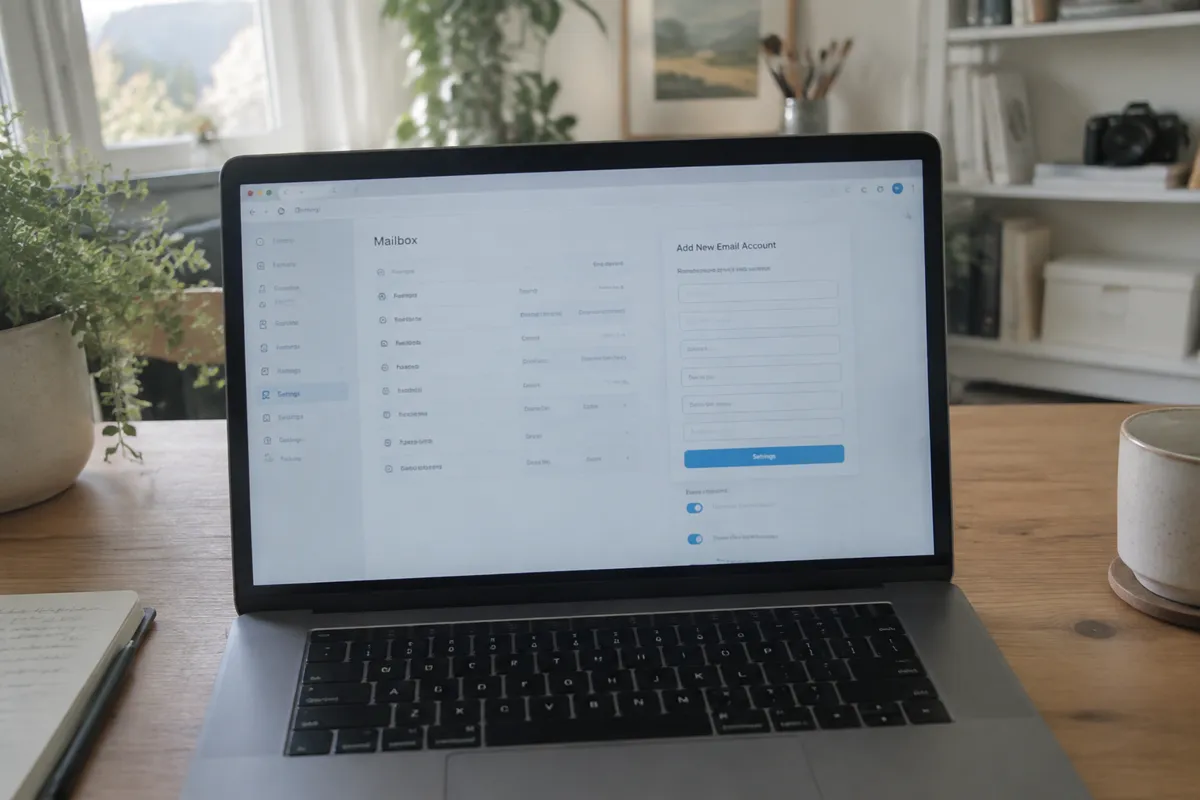
Open the Email Accounts Tool and Set the Mailbox Name
- Log in to the hosting panel and open Email Accounts or the equivalent section. In cPanel, it’s in the Email group.
- Click Create or Add Email Account. If you’ve added more than one domain, pick the right one from the dropdown, because choosing the wrong domain is an easy slip.
- Enter the mailbox name, such as
hello,info, orsupport. The domain part fills in automatically. Mailbox names are not case sensitive. Role addresses likeinfo@are easy to share but attract more spam, while personal ones likesam@are harder to guess. - Set a strong password, or let the panel generate one, and store it in a password manager. A weak mailbox password is one of the most common ways hosting accounts get used to send spam, which then damages your domain’s reputation.
Set a Storage Quota and Configure Webmail or IMAP Access
-
Set a storage quota if prompted. Unlimited is convenient, but note that mail storage usually counts against your overall account disk space, so a few heavy mailboxes can quietly eat into a small plan.
-
Save the account. The panel creates the mailbox. If your DNS is hosted on the same server, it will also manage the MX records so mail is delivered to the host.
-
Choose how you’ll read the mail. The simplest option is the panel’s webmail link, usually Roundcube or a similar tool. For a phone or desktop app, use the settings the panel shows under Connect Devices or Configure Mail Client. The typical values are:
- Username: the full email address, not just the part before the @.
- Incoming server: your host’s mail server, often
mail.example.com, using IMAP on port 993 with SSL/TLS. - Outgoing server: the same host, using SMTP on port 465 (SSL/TLS) or 587 (STARTTLS), with authentication turned on.
Use the exact values your host displays. If they differ from the typical pattern above, the host’s version wins.
The Records That Decide Whether Your Mail Gets Read
Mail delivery depends on DNS, and there are four records to understand. You don’t need to become an expert, but you do need to know what each one is for.

- MX records tell the world where to deliver mail for your domain. If they point somewhere else, such as a former provider, new mail never reaches your hosting mailbox, however correctly the mailbox was created. This is the number one cause of the “I set it up but nothing arrives” problem.
- SPF is a text record listing which servers may send mail for your domain. Without it, or with a wrong one, receiving servers are more likely to treat your mail as suspicious. A domain should only have one SPF record, so if you add a newsletter or invoicing service later, merge it into the existing record instead of adding a second.
- DKIM adds a cryptographic signature to outgoing mail, proving it wasn’t altered and really came from your domain. Many panels can generate and publish the record for you, often under an Email Deliverability tool.
- DMARC tells receivers what to do when SPF or DKIM checks fail, and sends you reports. A cautious starting policy is monitoring only, which you can tighten later once you know legitimate mail is passing.
Major mailbox providers have been stricter in recent years about authentication, particularly for anyone sending in bulk, so setting up SPF and DKIM at the start is now a basic requirement for a dependable business address and not an optional extra.
Verifying the Email Account Works
Send a test email from an external address, such as a personal Gmail account, to the new address. Confirm it arrives in webmail or your connected app. Then reply from the new address back to the external one and check that it arrives in the inbox and not in spam.
To go one step further, send a message from your new address to a free mail-testing service that reads the authentication results, or open the original message headers in Gmail and look for SPF and DKIM showing as pass. If either shows fail or neutral, revisit your DNS records. If you moved mail from another provider, confirm old messages copied across, rather than just the account existing with an empty inbox.

Common Errors When Creating Hosting Email
- Account created but no mail arrives. The domain’s MX records may still point at a previous provider, such as Google Workspace. Another possibility is that DNS is managed elsewhere, so the panel’s changes never took effect. See hosting email not working for the full diagnostic path.
- Outgoing mail lands in spam. SPF or DKIM is missing or wrong. Fix the records, then test again. Also check that nobody has been using a weak mailbox password to send spam from your account.
- Can’t connect via a mail app. Wrong port, wrong encryption setting, or a username typed without the domain. The panel’s Configure Mail Client page lists the exact values.
- Can receive but not send. Many home and mobile internet providers block port 25. Use port 587 or 465 with authentication, as above.
- Mailbox full and rejecting new mail. The quota was too low for the mail volume. Increase it, or clear out old mail.
- Sending from a website form fails or goes missing. Contact forms that use the server’s default mail function are often flagged or blocked. Routing form mail through an authenticated SMTP account, using a plugin, is more reliable.
- Hitting send limits. Shared hosts cap how many emails an account may send per hour. That’s fine for normal correspondence, but a newsletter will exceed it, so use a dedicated sending service for bulk mail.
Hosting Email vs a Dedicated Email Provider
Hosting-account email is convenient because it’s bundled with the plan and set up in the same panel as the site. Its downsides are real, though. Spam filtering is generally weaker than at the large providers, deliverability depends on the reputation of a shared server, and if your hosting account is suspended or hacked, your email goes down with your website. Shared IP addresses also mean other customers’ behavior can affect you.
For a low-volume address, such as the recipient of a contact form, hosting email is usually sufficient and costs nothing extra. For a business relying on email as a primary channel, routing the domain’s MX records to a dedicated provider such as Google Workspace or Microsoft 365, while keeping the website on the current hosting account, is the more common setup among established businesses. The cost is a per-user monthly fee, in exchange for better filtering, storage, and support. See email hosting for how the two approaches compare.
FAQ
Do I need a separate hosting plan for email? No. Most shared and managed hosting plans include email accounts as a built-in feature, created in the same panel used for the website itself. Some managed WordPress hosts don’t include email at all, so check before you assume.
How many email accounts can I create? It depends on the plan. Some allow unlimited mailboxes, and others cap the count or total storage. The panel’s Email Accounts screen usually shows the current limit.
Why does email stop working after I move hosts? Migrating hosting doesn’t automatically move email. The domain’s MX records need to be repointed at the new host’s mail servers, and existing mail may need manual migration; see how to migrate email hosting.
Can I use my hosting email with Gmail or Outlook’s app? Yes. Hosting mailboxes support standard IMAP and SMTP, so they can be added to Gmail, Outlook, or any mail app using the connection details the hosting panel provides.
Should I use a forwarder instead of a mailbox? A forwarder sends copies of mail to an address you already use, which is simple and needs no extra inbox. The catch is that replying from that address may not show your domain unless you configure sending as well, and forwarded mail can be marked as spam by the final recipient.